
If you go to school or work in North Carolina’s public education system, you’ve probably run into NCEdCloud already. It’s the login you use to reach the apps and tools your school connects to. This guide walks you through everything, step by step, in plain language. Let’s start with what it actually is.
- What Is NCEdCloud?
- What Is the Official NCEdCloud Login Website?
- How to Log In to NCEdCloud
- What Can Students Do in NCEdCloud?
- How Teachers and Staff Use NCEdCloud
- How to Access Your Applications Once They Are Integrated With NCEdCloud
- How to Claim an NCEdCloud Account
- NCEdCloud QR Badges for PK-5 Students
- What Is NCEdCloud MFA and How Does It Work?
- How to Reset Your NCEdCloud Password
- How to Recover Your NCEdCloud Username
- Common NCEdCloud Login Problems and Fixes
- Locked Out of NCEdCloud? Here’s What to Do
- Why NCEdCloud Is Not Showing Your App
- NCEdCloud vs Canvas, PowerSchool, and NCSIS
- How to Keep Your NCEdCloud Account Safe
- FAQs About NCEdCloud
- Final Thoughts on NCEdCloud Access and Support
What Is NCEdCloud?
NCEdCloud is North Carolina’s statewide identity and access management (IAM) service for K-12 public schools. Think of it as a secure front door. You sign in once, and you land on a page full of the apps your role is allowed to open.
What NCEdCloud stands for
The name comes from North Carolina Education Cloud. It isn’t a single app you use for lessons. It’s the layer that checks who you are and decides what you can access.
How the IAM service works
NCEdCloud runs on RapidIdentity by Identity Automation. It handles authentication (proving it’s you) and authorization (what you’re allowed to see). Your view depends on your role, school, district, PSU, and permissions.
Why NCEdCloud is used in North Carolina schools
It gives students and staff single sign-on (SSO). One login opens many approved systems, which cuts down on forgotten passwords and messy access rules. You can learn more about how single sign-on (SSO) works in general through Wikipedia’s Single Sign-On overview.
| Detail | Summary |
|---|---|
| What it is | Statewide K-12 identity and access service |
| Official portal | my.ncedcloud.org |
| Who uses it | Students, teachers, staff, admins, help desk |
| MFA | TOTP, WebAuthn, passkeys, authenticator apps, hardware keys |
| Password help | Self-service reset, then local school IT |
| Support path | School or district IT / help desk |
What Is the Official NCEdCloud Login Website?
The official portal is my.ncedcloud.org. That’s the only place you should type your username and password.
Why my.ncedcloud.org is the correct portal
This is the address managed for the statewide service. Bookmark the applications page, not a temporary login screen that pops up during sign-in.
How to avoid fake or outdated login pages
Skip old bookmarks and random search links. Fake login pages exist, so always check the web address before entering anything.
How to Log In to NCEdCloud
Step-by-step login process
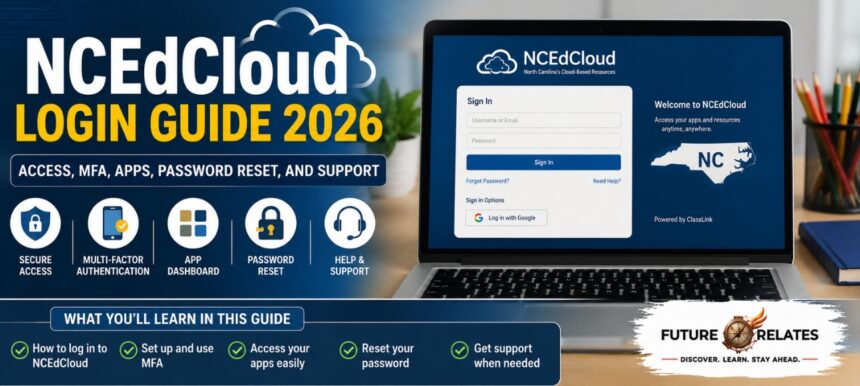
- Go to my.ncedcloud.org.
- Type your username, then click Go.
- Enter your password, then click Go.
- Complete MFA if you’re asked to.
What you will see after signing in
You land on the Applications module, your personal dashboard of tools.
Where the Applications module appears
It’s the default screen after login. Every icon there is an app your account is cleared to open.
What Can Students Do in NCEdCloud?
Access learning apps and digital tools
Students open learning platforms and school resources straight from their dashboard, no extra logins needed.
Student dashboard features
The dashboard shows only the apps tied to your grade, school, and enrollment.
Using NCEdCloud from home
Yes, students can use My NCEdCloud at home. As long as you have your credentials and an internet connection, remote access works fine.
How Teachers and Staff Use NCEdCloud
Teacher access and account tools
Teachers reach district applications and educator tools through the same portal, but with more options than students.
Staff applications and role-based permissions
What staff see depends on their assigned role. Some can view or reset student credentials.
Help desk and administrator capabilities
LEA and school help desk users get modules like People and Requests to support others. Access is strictly role-based.
How to Access Your Applications Once They Are Integrated With NCEdCloud
Applications module overview
Once an app is integrated, its icon shows up in your Applications module automatically.
Why app access differs by user
Your visible apps depend on role, school, district, PSU integration, and source data.
What to do if an app is missing
First, know it’s usually not a password issue. Ask your local IT team to verify your access and provisioning.
How to Claim an NCEdCloud Account
Staff claim process
Staff use Claim My Account, verify identity with details like their UID and birth date (YYYYMMDD format), then set a password and challenge questions.
Student claim process for grades 6–12
Older students may claim their own account using a student/pupil number, grade, birth date, PSU code, and challenge questions.
Why PK-5 students are different
Younger students usually don’t use the standard claim flow. Schools often issue their credentials directly.
NCEdCloud QR Badges for PK-5 Students
How QR badge login works
Younger kids scan a QR badge with a compatible camera instead of typing long usernames and passwords.
When QR badges need to be reprinted
If the password changes, the badge may need a reprint. Some PSUs opt out for certain grades.
Benefits for younger students
It removes the struggle of remembering tricky logins, so PK-5 students get into their tools faster.
What Is NCEdCloud MFA and How Does It Work?
Starting July 1, 2026, MFA becomes mandatory statewide for employee accounts.
TOTP explained
TOTP (time-based one-time passcode) gives you a 6-digit code that changes about every 30 seconds.
WebAuthn and passkeys
WebAuthn supports passkeys and biometrics like Face ID, Touch ID, Windows Hello, Android biometrics, and hardware keys such as YubiKey.
Authenticator apps and device options
You can use Google Authenticator, Microsoft Authenticator, 1Password, or browser-based authenticators.
For additional background on why MFA adds protection beyond a password, see the National Institute of Standards and Technology (NIST) MFA guidance.
How to Reset Your NCEdCloud Password
Self-service recovery steps
Use the Forgot Password option on the official login page to reset it yourself.
When to contact school IT
If self-service won’t work, reach out to your school or district IT team.
Password best practices
Employees face a 90-day cycle with a prompt starting at day 80, and you can’t reuse your last 24 passwords. Pick something strong and avoid personal info.
How to Recover Your NCEdCloud Username
Forgot My Username option
The official login page offers a username recovery path.
UID, alias ID, and email-based recovery
Usernames often tie to a state UID, student number, or employee UID. Some PSUs allow an alias ID or email login instead.
Common NCEdCloud Login Problems and Fixes
Invalid request error
This usually means an old bookmark or a stale session. Close the page and start fresh at my.ncedcloud.org.
Old bookmarks and stale sessions
Don’t bookmark the temporary login screen. Save the applications page instead.
MFA code issues
Wrong token, wrong account picked, or device time out of sync are common causes. Check your clock or reset your authenticator.
Browser and cache problems
Clear your cache and cookies, or try a private browsing window.
Locked Out of NCEdCloud? Here’s What to Do
Immediate recovery steps
Try self-service password reset first and confirm you’re on the official portal.
When account suspension or deactivation may be the cause
Suspended, expired, or deactivated accounts won’t log in until they’re fixed.
When to escalate to local technology support
If nothing works, contact your local IT or help desk. They can check your account status directly.
Why NCEdCloud Is Not Showing Your App
Role-based access
Your role may not include that app yet.
Provisioning and source data issues
A gap in source data or provisioning can hide an app.
School and district integration differences
Every district integrates apps differently, so availability varies.
NCEdCloud vs Canvas, PowerSchool, and NCSIS
Login system vs learning platform
NCEdCloud is the login layer. Canvas is a learning management system. They work together but aren’t the same.
Identity layer vs student information system
PowerSchool and NCSIS handle student records. NCEdCloud only handles identity and access. North Carolina completed its move to Infinite Campus on July 1, 2025.
How these platforms connect
You sign in through NCEdCloud, then open these systems from your dashboard.
How to Keep Your NCEdCloud Account Safe
Strong password habits
Use a strong password that’s hard to guess.
Protecting MFA codes
Never share your codes or QR badge with anyone.
Avoiding fake login pages
Only trust the official my.ncedcloud.org address.
Safe use on shared devices
Always sign out when you finish on a shared computer.
FAQs About NCEdCloud
What is NCEdCloud used for?
It’s the single sign-on service that opens approved school apps in North Carolina.
Can students use it from home?
Yes, with valid credentials and internet.
Why does it say “The request is invalid”?
It’s usually a stale session or old bookmark. Start fresh at the official portal.
Why is MFA required?
It adds a second layer of security. It becomes mandatory for employees on July 1, 2026.
Who should I contact for help?
Your school or district IT team.
Final Thoughts on NCEdCloud Access and Support
What stands out is how much simpler things get once you understand the basics. Stick to my.ncedcloud.org, keep your password strong, set up MFA early, and lean on your local IT team when something feels off. Do that, and NCEdCloud stays quietly reliable in the background, right where it should be.
For more useful guides and online resources, you can also explore FutureRelates.